
Your first game
This tutorial makes a project from the Platformer template, plays it, and then changes it three ways: a property in the Inspector, the level itself, and a Lua script. It takes about ten minutes.
1. Make a project
Section titled “1. Make a project”- Start the editor. The Welcome window opens (later: Help > Welcome).
- Under New Project, pick Platformer, type a name, choose a folder and click Create Project.
The project opens with its level scene. Every project is a folder: scenes
(scenes/*.scene.json), scripts (scripts/*.lua), art and sounds, and
project.json with the project’s settings.
2. Play it
Section titled “2. Play it”Press F5 (or the green Play button in the toolbar). The game runs in its own window: move with A / D or the arrows, jump with Space. Collect the coins, stomp the enemy, reach the door. Close the window (or press Shift+F5 in the editor) to stop.
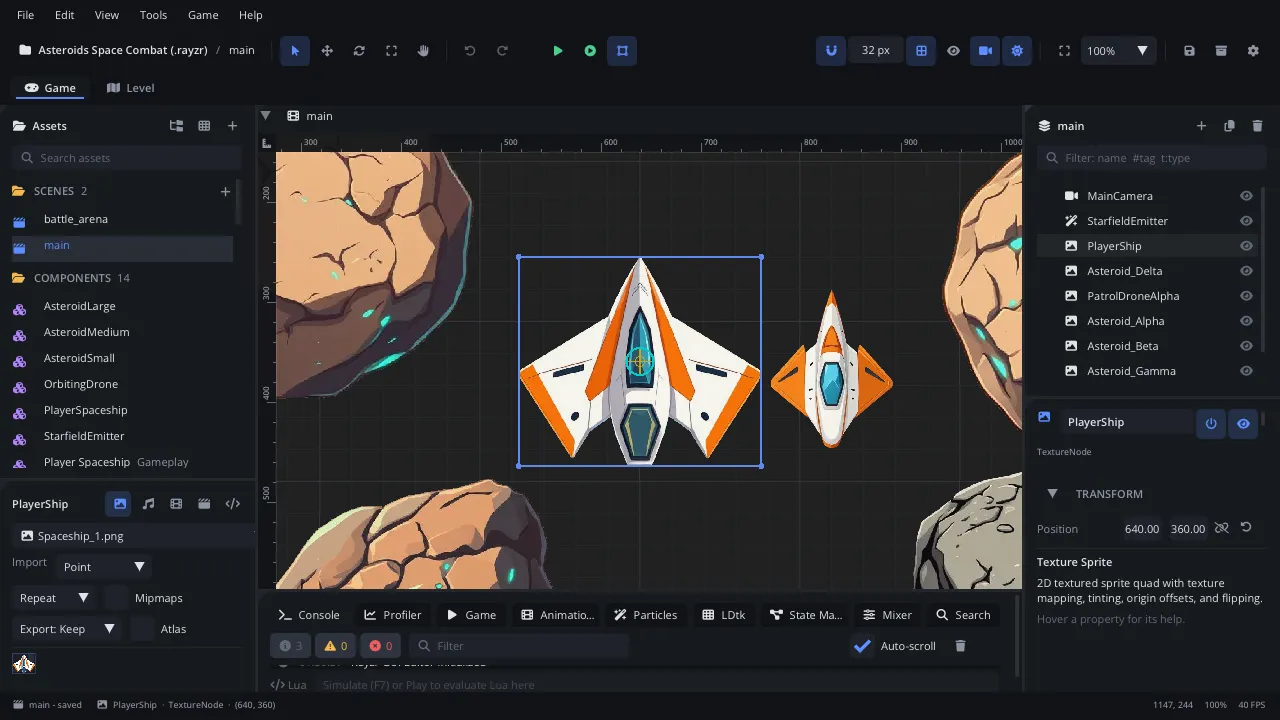
- Toolbar: tools, Play / Pause / Stop, grid and snapping, save, export, settings
- Scene: the node tree of the open scene (drag to re-parent, right-click for more)
- Viewport: the scene; select, move, rotate and scale nodes
- Inspector: the selected node's properties, script and signals
- Assets: the project's scenes, scripts, textures, sounds and components
- Bottom panel: Console, Animation, Particles, Mixer, Profiler and more
- Status bar: project, scene, selection, background tasks
- Preview: the selected asset (import settings, sounds, animations)
- Game / Level: the scene editor or the LDtk level editor (Cmd+Shift+1 / 2)
3. Change a property
Section titled “3. Change a property”Select the Player in the Scene panel. The Inspector shows its properties - the ones its script declares come last: Run Speed, Jump Velocity, Coyote Time…
- Set Jump Velocity to
360. - Press F5 again: the player jumps much higher.
Every property shows its help when you hover it, and the help pane at the bottom of the Inspector explains the selected one. The values are saved in the scene; the script only declares the defaults.
4. Change the level
Section titled “4. Change the level”- Select the Level tile map in the Scene panel.
- In the viewport, paint with the tile brush (Inspector > Tile Map picks the tile); right-drag erases.
- To add more coins, select a coin and press Cmd+D (Ctrl+D on Windows and Linux) to duplicate it, then drag the copy where you want it.
Cmd+Z undoes anything. Cmd+S saves the scene (Play saves for you).
5. Change a script
Section titled “5. Change a script”Coins are counted by scripts/hud.lua and collected by scripts/coin.lua.
Make each coin worth five:
-
In Assets, double-click
scripts/hud.lua. It opens in the Code tab, with completion and hover docs for the whole engine API. -
Change
add_coin:function Hud:add_coin()self.coins = self.coins + 5self:refresh()end -
Save (Cmd+S) and play. Scripts reload while the game runs, so you can also leave the game open and save again: the change applies at once.
A script is a table with methods the engine calls - ready() once,
update(dt) every frame, and on_<event> handlers such as the coin’s
on_body_entered(other). The scripting guide
covers them all.
6. Export it
Section titled “6. Export it”File > Export Standalone Game… builds the game for each target set up in Project Settings > Export (the gear in the toolbar): macOS, Windows, Linux or the web. Anyone can play the result without the editor.
Where next
Section titled “Where next”- The editor tour names every part of the window.
- The templates page describes the other starting points: a top-down RPG, a shoot ’em up, a Sokoban puzzle and the Platformer Adventure sample.
- The engine guides teach one feature at a time, each with a tutorial.